This tutorial is a guide for downloading PSODA for Linux. Other tutorials can be found at the tutorials home page.
NOTE: Because of the many different Linux distributions, these directions can only be used as a guide. Some instructions may vary.
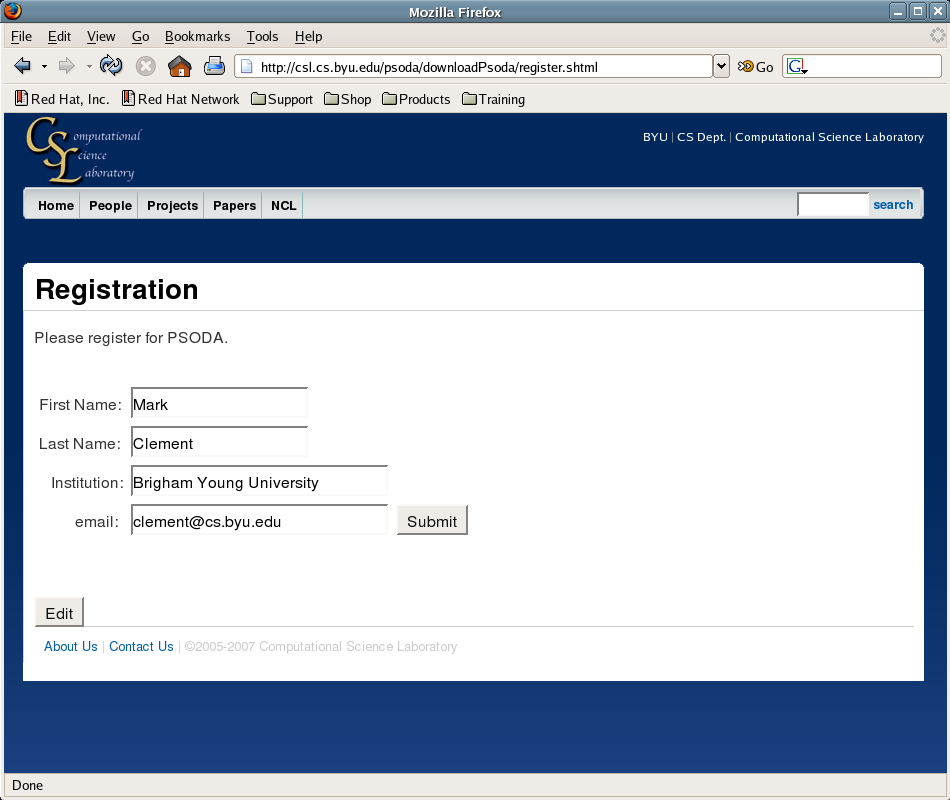
- Register for PSODA and submit. You will be redirected to the download page.
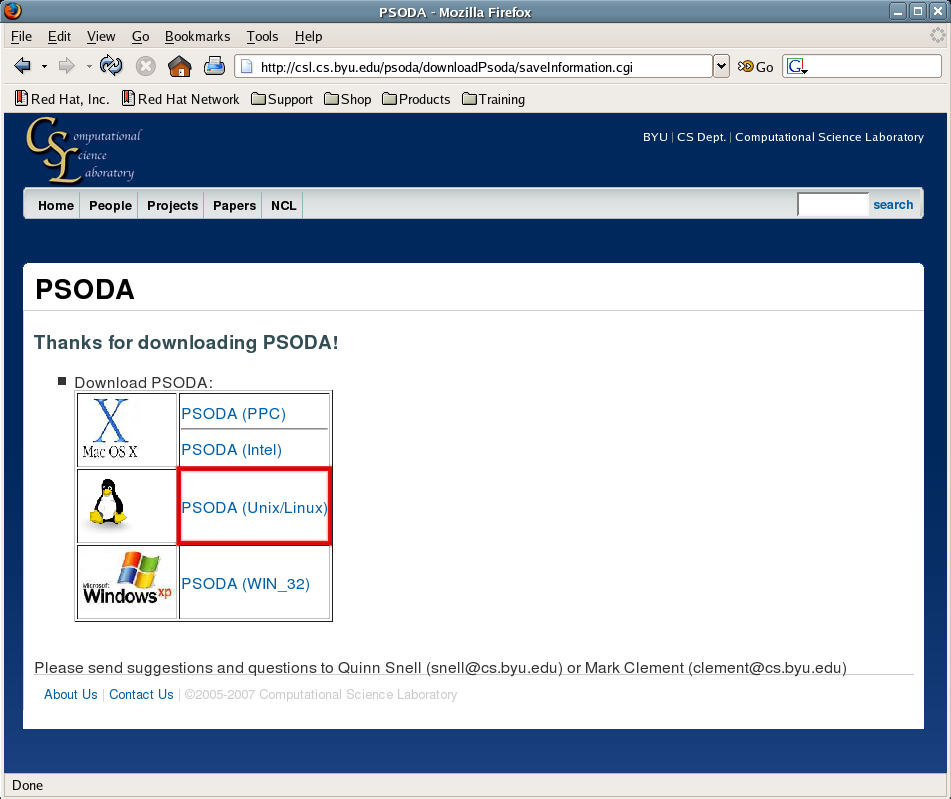
- Click the link to download PSODA for Linux.
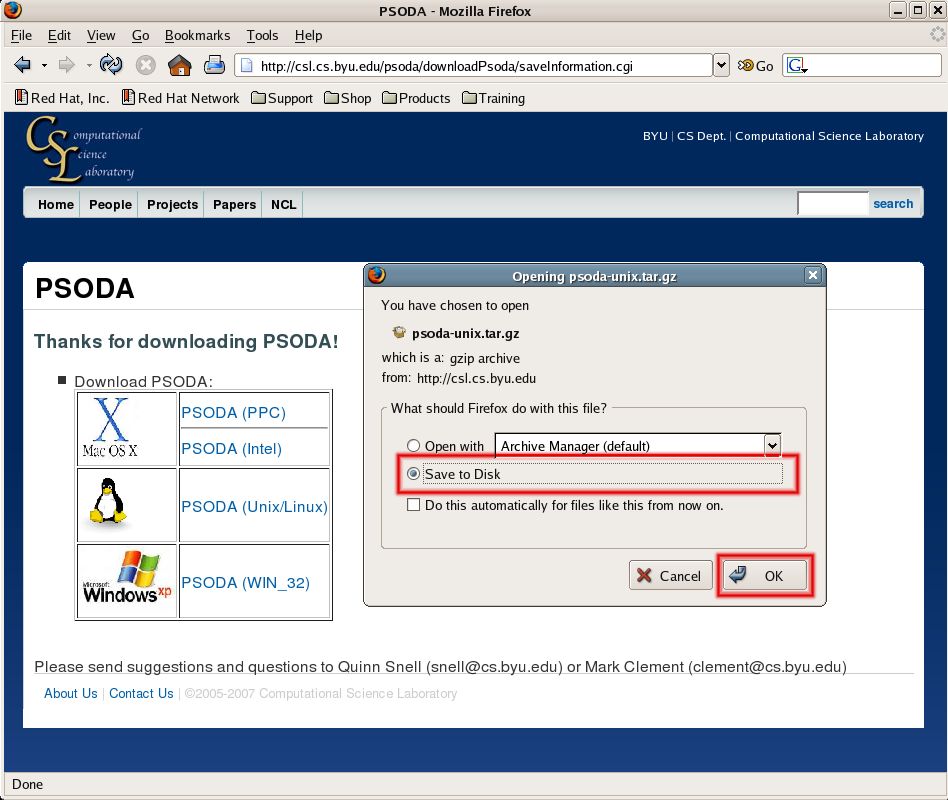
- You will then see a box asking whether to "Open" or "Save to Disk." Click "Save to Disk"
and then "OK."
- Firefox will save the file to the default location (usually the Desktop)
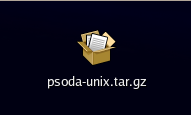
- Right-click on the file and select "Extract here." Another folder should appear on the Desktop.
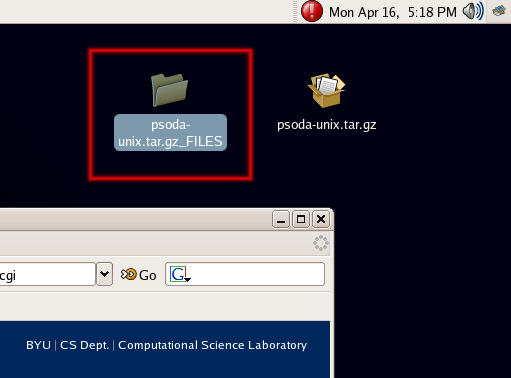
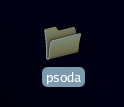
- There will now be a folder called "psoda" on the Desktop.
- Perform the following commands to run psoda:
- cd psoda/src
- java -jar psoda.jar
If you have trouble with the compiled version, you can issue the following commands
- cd psoda
- ./configure --enable-gui
- make complete
- cd src
- java -jar psoda.jar